Showing posts with label DESKTOP CUSTOMIZATION. Show all posts

Sunday, November 18, 2012

APPLY ANDROID SKIN PACKs FOR WINDOWS 7

Attention Windows 7 users. Here is a new skin pack for Windows 7 users and this is from Android.
Android launched the Android Jelly Skin pack for Android users. But now this is also available for Windows 7 users.
It will make your desktop more attract full and make it more customizable.
Installation is not difficult just download the file and run the file with extension .exe and follow the instruction provided by the setup.

Android-Jelly-Bean-Skin-Pack-for-Windows


Before Installing the skin pack , plz remove all the old skin pack if already installed. When you remove the previous skin pack then just one click to go. Before install close your all running applications and after installation restart your system.
It supports windows 7 , Windows 7 SP1 - {X86_X64} - All Languages- All versions.
For Windows 7 Starter and home Basic first need to patch and unlock Aero Effect.
Unlock Aero Effect
Click Here To Download :
Download Offline Installer
For X_86
.::DOWNLOAD::.
For X_64
.::DOWNLOAD::.

Saturday, July 10, 2010

ADD NOTEPAD IN SEND TO

Have Notepad In Send To

Many apply a registry tweak to have notepad as an option for unknown file types. We frequently see such files which are actually just text, but named with some odd file-extension. And then, some suspicious files which we want to make sure what the contents are. Well, in such cases where the registry tweak is applied, the downside happens to be that even some known files get associated with notepad - but no, all we want is to be able to open a file with notepad - the association part in such cases is unwanted interference. Also, notepad becomes a permanent fixture on the right-click menu - which is again an annoyance.

So what we do, is to have notepad as an option in the Send-To options, of the right-click menu in explorer. It fulfils the purpose to perfection (atleast, in my case). Here's what we do:

1. right-click desktop, choose "New >> Shortcut"
2. Type the location of the item - "notepad" - (that's all, no need to give path)
3. Next >> type name for shortcut - "Edit with Notepad"
4. Click finish
5. Now right-click this shortcut on the desktop, and choose properties.
6. Confirm that the "target" and "start in" fields are using variables - "%windir%\system32\notepad.exe" - (absolute paths will be problematic if you use this .LNK on machines other than your own)
7. Now, browse to "%UserProfile%\SendTo" in explorer (which means "C:\Documents and Settings\User_Name\SendTo\" folder)
8. And copy the "Edit with Notepad.lnk" file which you already created, to that folder.
9. So now, you can right-click on ANY file-type, and be offered an option to open with notepad, from the SendTo sub-menu.

So now, you just right-click on an .nfo or .eml or .diz file (which are associated with other programs, and are sometimes just plain-text files), and choose "Send To >> Edit with Notepad" and it will open in notepad!
No more botheration of applying registry tweaks for something as simple as this.

Monday, June 28, 2010

Change The Default Location For Installing Apps

Change The Default Location For Installing Apps
-----------------------------------------------

As the size of hard drives increase, more people are using partitions to separate and store groups of files.

XP uses the C:\Program Files directory as the default base directory into which new programs are installed. However, you can change the default installation drive and/ or directory by using a Registry hack.

Go to :-

- Start > Run

- Type “regedit” (without “” NOOBS!)

- Go to this directory…
HKEY_LOCAL_MACHINE\SOFTWARE\Microsoft\Windows\CurrentVersion

- Look for the value named ProgramFilesDir. by default,this value will be C:\Program Files. Edit the value to any valid drive or folder and XP will use that new location as the default installation directory for new programs.

Sunday, May 23, 2010

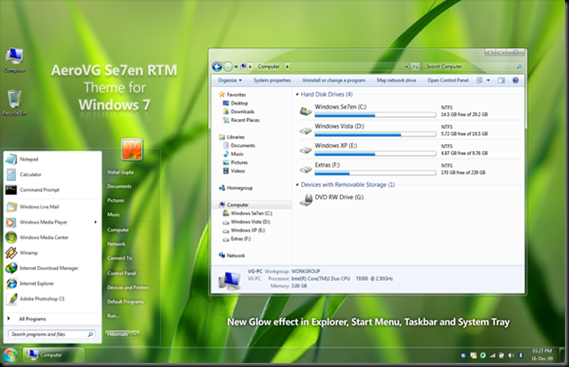
Aero GLASS theme FOR WIN 7

"Aero theme is one of the most popular themes available for Windows Vista. It provides excellent transparency in Taskbar, Startmenu, Explorer, etc. It also changes lots of visual things like menubar, addressbar, progressbar and much more.

Lots of Windows 7 users requested to make the same theme for Windows 7. Today I'm very pleased to announce the release of "Aero Se7en" theme which is a Windows 7 port of my "AeroVG" theme for Vista.

AeroVG_Se7en_RTM_Small

IMPORTANT:

If you are using previous Beta versions of "Aero Se7en" theme, then run "First Run Me.bat" file to delete previous Beta versions and install new RTM version of theme.

If you are not using any previous Beta version, simply run "Install Theme.exe" file to install and apply final version of "Aero Se7en" theme.

I hope you guys will like the final version.


You can download it using following link:

CLICK HERE TO DOWNLOAD NOW (mikkimax)

HOW TO CHANGE FOLDER BACKGROUND IN XP

1. Download "Windowpaper XP" from following link:

CLICK HERE TO DOWNLOAD NOW (mikkimax)

2. Install the software and you can easily change the folder background and font colors:

gui

Tuesday, January 5, 2010

Use Vista’s Aero Cursor in Windows XP

If you like the Aero styled cursor scheme of Vista and want to use it on your XP system, then here is a nice utility. This tool will install the vista cursor scheme in a single click to your windows files.

imageYou just need to download this package and install it. To install the cursor package: right-click the Install.inf file that comes with the package and choose the install option from the context menu.

The cursor package will be installed in Windows XP and can then be selected in the Control Panel as the main cursor scheme for Windows XP. To set the scheme Go to> Control Panel > Mouse and click on the Pointers tab in that window. The Aero cursor scheme should show up in the menu as Aero Cursors

download from rapidshare click here

CLICK ME FOR DOWNLOAD

Saturday, January 2, 2010

Zoozoo Calendar for 2010

The famous Zoozoo advertisements are exploring their creativity beyond the limits. An official Zoozoo Calendar for 2010 has been out which features the popular zoozoo creatures.

SIZE : 1224x768

CLICK ME FOR DOWNLOAD 

jan

dec

CLICK ME FOR DOWNLOAD

Tuesday, December 29, 2009

Print or Save Any Open Window or Computer Screen With Hardcopy

162821980_442c2c53db

For some reason, I wanted to get the prints of some opened windows in my computer. The normal routine to get open window's print is a Print Screen (PrtSc) function. It is very lengthy task. It is like first PrtSc, paste, cropping, save, etc. You also have to play with layers if you do not want background or foreground in your print and bla bla bla.

I Googled my problem and come across a very nice piece of software Hardcopy. Its working and functions are surprisingly perfect along with it is available in a free version (I am talking about other paid versions). For personal use, free version is quite perfect. It let you print any opened window or computerscreen in your computer. You have physical or virtual printer, Hardcopy can print. You want the print of active window, it will do or you want the whole desktop print, it will do.

I suppose that you have installed Hardcopy and is active in system tray. There are many ways to get prints.

1: If you press PrtSc button on keyboard, the current screen contents (whatever is) will be in Hardcopy window and you will be asked to print it.

2: After installation, you will see a Print button (green) near the minimize button of active window. This button hides when window is inactive. Press this button and you will get print of the active window. The green button .

3: Hold Alt button down and press PrtSc button, the active window will be printed.

4: If you do a left mouse click on tray icon of Hardcopy, the active window will be printed.

Keep in mind, any window or screen which printed will also be shown in Hardcopy program window. This gives you advantage to play with that window by applying different provided functions. You can use it on Windoows 98, ME, NT, 2000, 2003, XP, Vista and Seven (7).

You may use it for:

• Documentation of errors

• Documentation of programs

• Documentation for the revision / commercial requirements

• If SAP® is used the revision will be pleased in particular about the additional

SAP® – information!

(This is in particular important with tests of new SAP®-releases or with new

projects like introduction of the Euro, ...)

• Printout in programs, which don’t contain any print functions

• Printout of all visible information, even if this is not provided in that program

• Archive: saving in files or in a data base

• The same functions are available with a scanner.

There are many other functions but I can not write all. You should also explore it. I tested it on Windows 7 Ultimate and it is working fine. NEVER MISS ANOTHER PRINT. Open the following URL into your browser to access the home page of Hardcopy (copy n paste URL).

http://www.gen.hardcopy.de/

There are four different versions available. Below is a comparison chart taken from Hardcopy site:

Tuesday, December 22, 2009

Download ChristmasTheme for XP From microsoft

If you are looking for a way to customize your XP machine for the holidays, you might want to install the oldie but goodie ChristmasTheme 2004 from Microsoft. Here we take a look at what you can expect when installing it on your XP computer.

ChristmasTheme 2004

After successful installation, the Display Properties window opens under the Theme tab and you need to click on Apply and Ok to start using it.

You’ll see it adds a neat looking snowy background with Santa Claus in his sled. It also changes the pointer and a few other icons like My Computer. Also when you boot up, it plays a Christmas jingle instead of the standard logon sound.

2x

Another cool feature is a neat 3D screensaver that shows Santa flying around and delivery presents.

You can change the theme back later by going into Display Properties under the Themes tab and selecting a different one.

Of course there are other Christmas and holiday themes you can download from customization sites, but this one is the official one offered by Microsoft. It gets the job done if you want to display the theme for a few days over the holiday season on your XP machine.

Download ChristmasTheme 2004 from Microsoft

Wednesday, December 16, 2009

HOW TO CHANGE PANDRIVE BACKGROUND SET WALLPAPER IN PANDRIVE BACKGROUND BY mIKKImAX

pandrive की background में wallpaper लगाये

Pandrive की background में wallpaper लगाये
PLEASE FORMAT YOUR PANDRIVE BEFORE USE THIS TOOL
१। नीचे दिए लिंक से टूल को डाउनलोड करें
डाउनलोड करने के लिए इस पंक्ति पर माउस से क्लिक करें
२। USB में pandrive लगायें ।
३। टूल background changer.exe पर डबल क्लिक करें ।
४। टूल में दिए निर्देश का पालन करें
टूल में दिए निर्देश :
pandrive सेलेक्ट करना : अपनी pandrive का केवल एक letter ही इंटर करें :\ पुरा नाम kingston:(d) नाम न लिखे केवल D लिखें तत्पश्चात enter key प्रेस करें
background select करना : आपके कंप्यूटर में किसी भी जगह पर जो वाल पेपर आप लगना चाहते है उस जगह पर जायें तथा उस wallpaper को माउस की सहायता से ड्रग कर टूल विण्डो में डाळ दें ।
wallpaper की फाइल का एक्सटेंशन केवल jpg ही होना चाहिए अन्यथा background नही badal पायेगी
png, gif, bmp, cdr, ppt आदि की background नही बन पायेगी
तत्पश्चात enter key प्रेस करें
pandrive की ड्राइव को खोले व उसे राईट क्लिक करके referesh करें ।

NO VIRUS GUARANTEE 100%
1. FORMAT YOUR PANDRIVE BEFORE USE THIS TOOL
2. DOWNLOAD THIS TOOL BY  BELOW LINK
up
3. INSEART YOUR PANDRIVE IN TO USB PORT
4. RUN BACKGROUND CHANGER.EXE BY DOUBLE CLICK
5. FOLOW THE INSTRUCTION IN TOOL
INSTRUCTIONS :
SELECT PANDRIVE : PLEASE SELECT YOUR PANDRIVE LETTER ONLY LIKE  KINGSTONE(D):  THAN TYPE ONLY  “D” WITHOUT COMMAS, AND THAN PRESS ENTER
SELECT WALLPAPER : SELECT ONLY JPG FILE NOT OTHER EXTENTION FILES
BROWSE YOUR COMPUTER AND DRAG AND DROP THIS JPG FILE IN TO TOOL WINDOW  AND THAN PRESS ENTER
AT LAST AFTER USE ALL ABOVE PROCESS OPEN YOUR PANDRIVE AND REFRESEH THAT

Tuesday, November 17, 2009

Remove the Welcome Screen or Logon screen

logon

If you dont want to use "Fast User Switching", you may want to disable the Welcome Screen. You must be logged in as an Administrator to do this. Note:To do this follow the directions below:

1) Click on Start

2) Click on Control Panel

3) Double-click on User Accounts

4) Click on "Change the way users log on or off"

5) Uncheck "Use the Welcome Screen" (note: this will also disable "Fast User Switching")

6) Click on Apply Options

7) Close the User Accounts window and the Control Panel

8) The next time you reboot your computer, the classic login prompt will be used

What if I dont want the Welcome Screen OR the classic prompt? Can I disable both?

To Login automatically to a user account, follow the instructions below:

1) Click on Run

2) Type in the following command and click OK

control userpasswords2

3) Highlight the user you want to log into automatically, then uncheck the box for

"Users must enter a username and password to use this computer"

4) Click on Apply and you'll be asked to verify the username and password to log in automatically

5) Click OK and the next time you restart your computer, you'll automatically be logged in without having the classic prompt or Welcome Screen.

Is there a utility I can use to accomplish this?

You can download a utility for Windows XP called TweakUI that will allow you to change the way you log into Windows XP, along with allowing you to change alot of other features.

You can download TweakUI for Windows XP from the Microsoft Powertoys web page at

http://www.microsoft.com/windowsxp/downloads/powertoys/xppowertoys.mspx

Monday, October 19, 2009

JetAudio 7.5.5

Free multimedia player. Audio/Video Playback. Create MP3, mp3PRO files from audio CD. Broadcast MP3, mp3PRO formats.

Download JetAudio

Saturday, October 17, 2009

Burnout your desktop with Free Fire Screensavers !

Free Fire Screensaver is a light freeware version of Fantastic Flame Screensaver offered by laconic software. This screensaver will burnout your desktop but not in real. It looks really awesome and has a fantastic graphic appearance along with amazing sounds.

free-fire-screensaver-screenshot free-fire-screensaver-settings

Features of Free Fire Screensaver:

  • Realistic animated real-time fire effect.
  • Nice fire sound. Your guests can think you have a big camp fire in your house!
  • Ability to choose any music file or playlist for playing while the screensaver is running full-screen.
  • Two soundtracks – Melancholic and Romantic – come included.
  • Ability to take snapshots of your burning desktop anytime.
  • Full dual monitor support.
  • Low system resources consumption – less than most of animated 3D screensavers.

Download Free Fire Screensaver

There are two more fire screensavers and wallpapers which you can download free.

Free Matrix 3D Screensavers for Windows & MAC OS X

Screensavers are mainly used when some work is undergoing in background on computers. They provide a cool look to our desktop while it’s empty or when a PC is left alone.

I’ve found awesome Free Matrix 3D Screensavers for Windows & MAC OS X, that will completely change the view of your desktop .

matrix saver Matrix GL

1) MatrixSaver is a screen saver for Mac OS X that replicates the screen effects of the motion picture The Matrix. It is the only Matrix-style screen saver that is fully compatible with Wallsaver, allowing users to display the screen saver as their desktop wallpaper.

MatrixSaver is a modified version of GLMatrix from the xscreensavers project.

Download  [ For MAC]

2) MatrixGL is a semi-3D Matrix screensaver with a different approach to the Matrix, instead of having a simple matrix of glyphs. The screensaver arranges the glyphs in streams, which fall down independently of each other and glow upon intersecting with each other.

It provides the Ability to change the color of glyphs. You can also alter the speed, transparency, Glyph size & font, aspect ratio, sounds, background color, etc. using various customization options.

Download  [ For MAC]

3) Matrix Trilogy 3D Code Screensaver is a cool and high quality screensaver for Windows. It shows the falling codes like that in Matrix movie. It also offers options to alter the speed, transparency, Glyph size & font, aspect ratio, sounds, background color, etc.

Download  [For Windows]