Showing posts with label OS. Show all posts

Wednesday, October 20, 2010

DOWNLOAD GOOGLE CHROME OPERATING SYSTEM

 
Chrome OS is at the beta stage. You can download the free Chrome OS Live CD below.

untitled

Download Chrome OS 0.8.552 beta (x86) Live CD

602 MB iso, MD5: 9089c4d93f03a3644b1a500aa708c3ba

Download using BitTorrent

How to install: Download the iso file and burn it into CD-R. Boot the computer from it and when Chrome OS is loaded, click Live Installer on the desktop. Follow the instructions.

User password: user

Root password: root

SOURCE : GOOGLE

HOW TO INSTALL GOOGLE CHROME OS IN XP

Have you heard about a new Operating system? No, i mean haven’t you heard of an operating system from Google named Chromium OS. Oh! So you have heard but not tried it due to many reasons. Don’t worry, after reading this article, you will be in a position to install the same!

chromeosscreenshot2

So, there’s all new Operating system called Chromium OS which comes from Google’s family. Though this operating system is Linux based which is an open source.

Let’s check out the Ingredients first : Google Chromium OS iso file and Virtual Box software suite.

First, all you need to is to download two foremost things, one is Google Chromium operating system iso file and other is Virtual Box. You need to download Google Chromium OS iso file from here and download Virtual box from here.

Procedure to install Google Chromium OS :

So, are you ready to install an all new Google Chromium operating system? If yes, then kindly follow the step by step procedure to install the same!

Step 1: Open the download file of “Virtual Box” and first install the same. After installing the same, open it.

Now, create a “new” virtual machine, name it and set operating system to “other” and then click on “next”

Step 2: Now, it’s time to set the size of the base RAM, though my recommendation to you is to set 512 MB, but also consider that in future you can increase the memory later on if you feel.

Step 3: After setting up the RAM size, you need to create a new virtual hard disk, please note that while creating the boot hard disk please “Check” “Primary Master” option.

Step 4: Now, after RAM size, all you need to do is to pick up the storage which you wanted to use. It’s recommended to have one dedicated drive with dynamically expandable storage.

Step 5: Now, select your virtual hard disk space. Its recommended to use at least a minimum of 2GB but you can also set according to your needs. Now, click on next and proceed by starting Google Chromium OS.

Step 6: After pressing the “Start” button, a new pop up will be popping up “First Run Wizard” which will appear to help you manage the media to use. Now, you will need to select and add the downloaded Chromium OS ISO image.

Step 7: Now, the installation of Chromium OS will start immediately after having selected the installation media from either pen drive or a DVD/CD.

Step 8: The Google Chromium Operating System installer is really very easy to use, so just go on and enjoy the finished installation with a whole new operating experience.

Have a look at the welcome screen of Google Chrome Operating system:

Bingo! There you are, you have successfully installed an all new and latest Google Chrome Operating system 8, kindly don’t forget to share your experience here! After all, commenting is the new THANK YOU for us!

Tuesday, October 19, 2010

HOW TO MAKE XP LIKE GOOGLE CHOROM OPERATING SYSTEM

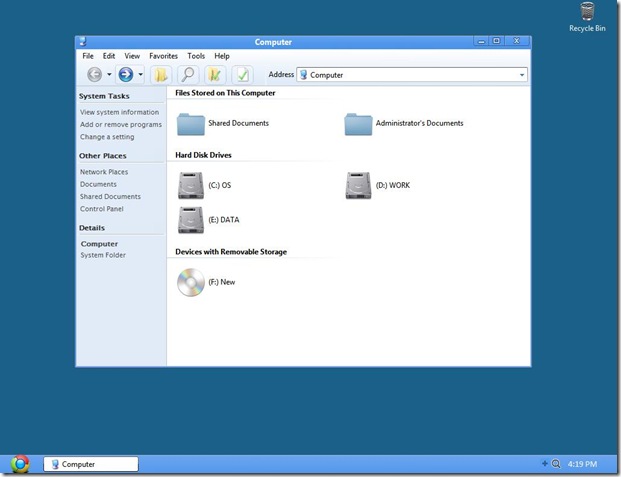
Google Chrome operating system announcement made lot of buzz recently. While official Google Chrome OS release is still few months or years away, here is a free XP theme for some Google Chrome OS play on your Windows XP computer. Chrome XP V4 is a free theme that transforms your Windows XP computer to look like Google Chrome OS.

Chrome_XP
Of course, this is unofficial and virtual way of checking out “how Google Chrome OS will look like?”. Theme look all polished and thankfully does not have Vista inspired elements. Download Chrome XP V4 theme below , to install copy theme contents in folder “C:WindowsResourcesThemes” on your XP computer.
Give your XP PC Google Chrome OS makeover, interested?


Free Download Link for Chrome XP V4 theme :

Monday, October 18, 2010

WHICH ONE IS MOST ADVANCED OS IN WORLD

A while ago Jenny bought herself a new laptop. There was no way we consider wasting money on a laptop running Windoze (you try buying a non-Apple laptop without paying Windoze tax!), so a MacBook Pro it was (I had some say in the machine's specs).
The Mac has some interesting features, and I like the way everything Just Works. MacOS is a bit different from Solaris, but it's really easy to pick up. So what's the point of this post? Apple touts Mac OS as "the world's most advanced OS", and that patently isn't so. Don't get me wrong: I like Mac OS (although I still find the idea of paying for an OS to be a bit grating), but the world's most advanced OS it isn't.
I'll raise just a couple of points to support my view.
1. Until the recent release of Mac OS Snow Leopard (10.6), Mac OS was a 32-bit only OS (Snow Leopard is apprently 64-bit--I can't confirm this cause I haven't got round to installing it yet). Colour me unimpressed: Solaris has been 64-bit clean the launch of Solaris 7, well over a decade ago! Also, Solaris' 64-bit kernel is quite capable of running brand new 64-bit apps and ancient 32-bit apps side by side. I don't know if Mac OS supports that.
2. Mac OS is based on (IIRC) FreeBSD. Not exactly the first OS that comes to mind for multithreaded scalability. How scalable is Mac OS? I guess we won't know because the biggest machine Apple sells is a piddly dual-socket, quad-core desktop. Big deal! Solaris scales from tiny single-core tiny laptops to massive 64-socket, quad-core behemoths that supports up to 4TB of RAM. And that's from the same OS binary.
3. Apple recently announced the dropping of ZFS, arguably the world's most advanced file system. If your OS doesn't support an adavanced file system like ZFS, then it is not a contender for the world's most advanced OS. It's just that simple.
4. Solaris has support for HW hot swapping that Mac OS can only dream of. In the right machine, if a CPU board dies, you can just replace it on the fly. No downtime, no interruptions.
I could go on, but I think I've made my point. Mac OS is a fine OS and is leagues ahead of Windoze, but the world's most advanced OS it isn't. That crown belongs to Solaris.

Tuesday, March 23, 2010

How to Speed Up Windows 7

windows_7_complete-guide_01 So, one of the most asked questions I hear is: How do I speed up Windows 7?

Most guides will tell you to turn off all the aero features and use no background wallpaper. That’s not useful, that’s more like a trade-off, because who wouldn’t want a nice desktop? And AeroSnap is really useful! I agree that you can get some more performance by doing this, but it’s not worth it. If you think you don’t need a “fancy” desktop, then feel free to do it anyway…

1. Hit Start

2. Enter “SystemPropertiesPerformance” into the search field, hit enter

3. Select “Adjust for best Performance” or at least uncheck the first two entries

Monday, March 22, 2010

SPEED UP WINDOWS 7 Speed Up Windows 7 Boot

windows_7_complete-guide_01

Speed Up Windows 7 Boot

Do you have a dual-core or quad-core processor? Great, let’s lower the boot time of Windows 7:

1. Click on Start, enter “msconfig” into the search field

2. Open the “boot” tab

3. Click on Advanced

Speed Up Windows 7 Boot

Speed Up Windows 7 Boot

4. Check “Number of proccessors” and select “2″ or “4″ from the dropdown menu. (obviously, you can only select it if you have a dual-core/quad-core).

Monday, January 18, 2010

Download ‘Your Guide to Windows 7’

Previously, we’ve shared many guides and eBooks focussing on Windows 7 tips and tutorials. A new small guide is now available for free download.

Your Guide to Windows 7

According to Rob Margel, Your Guide to Windows 7 covers the following aspects of Windows 7: Gadgets, Searching, Projector Mode, The new taskbar, Problems step recorder, Peek, Libraries, Windows Shortcut keys, Snap, Windows Troubleshooting & the Action Center.

Download PDF Guide Here (802 KB)  via  [Softpedia]

Friday, December 25, 2009

10 Things You Must Do With Your New Windows 7 PC

If you got a new Windows 7 laptop for Christmas, you are truly in luck. But here are 10 things you need to get the most out of it.

1. Take a Spin Around the New Interface: Still glassy, glossy and damn near glittery, the Windows 7 interface is actually a major progression for Microsoft: It's not just easy to use, it's a whole new paradigm with the revamped taskbar and Aero Peek making multitasking with multiple windows more natural than ever.

2. Turn Off Everything You Don't Need: While Windows 7 is missing some odd things, like a mail application, the flip side is that you can turn off pretty much every major feature you don't want. Internet Exploder 8? Gone. Windows Media Player? Poof. And if you're used to tweaking the crap out of Windows, you still can—a lot of the old tricks, like for manipulating context menus, still work.

3. Move All Your Crap from Your Old Machine: Windows 7 actually has pretty decent built-in powers for moving all your crap from your old and busted PC to your new pride and joy, though you need to download Windows Easy Transfer separately onto XP if you're pulling stuff from that.

4. Master All of the New Keyboard Shortcuts: Why deal with flipping around a mouse or scribbling on a trackpad when you do the same thing in a tenth of a second with a keyboard combo? The Start key (oh sorry, Windows key), which I've always neglected as a useless monotasker, is supremely useful in Windows 7, as the underpinning for a metric ton of keyboard shortcuts.

5. Get It to Play Nice With All of Your Gadgets: The good news about Windows 7 is that, unlike Vista, most of your gear that worked with your computer a couple years ago with Windows should still work. And newer gear interacts with Windows in a fancy new way with a big ol' splash graphic and easy access to all the stuff you'd wanna do with it. While even simple things, like adding a second monitor, are more straightforward now, here's a device-by-device breakdown on getting everything to touch Windows 7 appropriately.

6. Share Stuff With Your Other Computers, 'Cause It's Easier Now: The networking UI hasn't just gotten a facelift to make it more accessible, it's actually easier to use with HomeGroups—join a HomeGroup, and all of the stuff you want to share with other computers spreads like herpes to the rest of the HomeGroup, no arduous networking required. Also, network in general—like with Macs—seems to just work better with Windows 7.

7. Stream Your Music and Videos Everywhere: Connecting your PC to a TV sounds so 1999. Well, you might not know this, but your Windows 7 PC is a badass music and video streamer, DVR, photo viewer, video aggregator and everything else you'd want out of a multimedia box, all thanks to Windows Media Center. The living room PC is legit now. Not to mention Play To, which beams music (and video and photos) to any compatible device on your network, no setup required (really!). All it takes it a right-click, and those Sonos speakers on the other side of your house will magically start yelling the Yeah Yeah Yeahs.

8. Upgrade Your Netbook to Windows 7 Home Premium: If you got a Windows 7 netbook, there's a good chance you got stuck with the artificially gimped out Starter edition, which sucks. The cheapest way to fix this is to buy Windows 7 for $30 using a valid .edu email address, then follow our guide to installing Windows 7 on any netbook.

9. Set Up Some Network Storage: A fresh computer is a fresh start—meaning it's a perfect time to start a new life with fully networked storage for backup, especially if you're using your machine as a DVR with Windows Media Center. (But skip on faster drives.) One awesome option? A Windows Home Server machine, which can do backups and stream out media to all of your computers.

10. Remote Control It From Anywhere with VNC: While diving deep into the system and futzing with your network at the same time, you might as well set up a VNC server so you can control your computer from anywhere, whether it's to pull files or schedule downloads.

That's it from us. Share your own tips and tricks in the comments, and Merry Christmas!

Thursday, December 24, 2009

DOWNLOAD PLATINUM GUARD FREE FROM SOFTPEDIA TO CLEAN YOUR HARD DRIVE

Reohix in collaboration with Softpedia.com is offering Platinum Guard 4.0 worth $13.99 for FREE as a giveaway.

Platinum Guard has the following features discussed below:

Platinum Guard

  • Improve your computer’s performance by getting rid of junk and temporary files that clog the system.
  • Recover the valuable free hard disk space that otherwise would have been occupied by junk and temporary files.
  • Completely clear your tracks to render invisible your recent activity on your personal computer.
  • Compatible with all the latest popular web browsers including Internet Explorer, Firefox, Opera, and Google Chrome.

Download Platinum Guard Free  [Direct Installer]

Saturday, December 19, 2009

Google Experimenting With Browser Login For Chrome OS

Google has made a change to Chrome OS to move the user login from the machine to the browser. Our guess is Google is, or will eventually use, Google Friend Connect to facilitate login.

The feature was first mentioned on October 13: “Using Chrome as our login manager has a number of potential benefits.
Explore these tradeoffs and decide what to do about the login manager.”
The code was checked in on December 14: “An early version of this change is finally in. It’s not ready for daily use yet, and we haven’t gotten the network picker on there or anything yet, but at least we’ve got a baseline in there. I’m filing issues for the follow-on work.”

There are lots of potential benefits to having users log into machines via the browser. In particular it makes syncing easier and furthers the notion that you can log into any Chrome OS machine and have exactly the same experience as you would on any other machine. The fact that users can’t download any software to Chrome OS computers furthers this experience.

But it’s also clearly interesting from an identity standpoint. Facebook and Twitter are both making strong plays as the defacto online identity for hundreds of millions of Internet users. Facebook Connect in particular is becoming a very popular way for third party sites to easily add identity and login features to apps

But people using Chrome OS devices will be logging into the Internet first and foremost with a Google account, or via Friend Connect (which currently allows signin via Google, Twitter, Yahoo, AIM, Netlog, OpenID, etc.). By centralizing authentication once, Google can then use the same Friend Connect credentials to automatically login to sites that support it.

If Chrome OS becomes popular, it will be a very powerful weapon for Google to compete with Facebook Connect.