test

Sunday, December 20, 2009

Saturday, December 19, 2009
Google Experimenting With Browser Login For Chrome OS

The feature was first mentioned on October 13: “Using Chrome as our login manager has a number of potential benefits.
Explore these tradeoffs and decide what to do about the login manager.” The code was checked in on December 14: “An early version of this change is finally in. It’s not ready for daily use yet, and we haven’t gotten the network picker on there or anything yet, but at least we’ve got a baseline in there. I’m filing issues for the follow-on work.”
There are lots of potential benefits to having users log into machines via the browser. In particular it makes syncing easier and furthers the notion that you can log into any Chrome OS machine and have exactly the same experience as you would on any other machine. The fact that users can’t download any software to Chrome OS computers furthers this experience.
But it’s also clearly interesting from an identity standpoint. Facebook and Twitter are both making strong plays as the defacto online identity for hundreds of millions of Internet users. Facebook Connect in particular is becoming a very popular way for third party sites to easily add identity and login features to apps
But people using Chrome OS devices will be logging into the Internet first and foremost with a Google account, or via Friend Connect (which currently allows signin via Google, Twitter, Yahoo, AIM, Netlog, OpenID, etc.). By centralizing authentication once, Google can then use the same Friend Connect credentials to automatically login to sites that support it.
If Chrome OS becomes popular, it will be a very powerful weapon for Google to compete with Facebook Connect.
HOW TO STOP STARTUP PROGRAMS IN XP
Here is how to use MSCONFIG in Windows XP to disable some of the unnecessary programs that automatically load on start-up. Disabling these programs will help your computer boot faster and crash less. [For step-by-step instructions on how to use MSCONFIG in other versions of Windows
1. In Windows XP, go to Start > Run
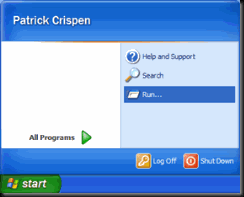
2. Type MSCONFIG in the "Open:" box and then either press enter on your keyboard or click on the OK button.

3. This launches Microsoft's System Configuration Utility. Click on the Startup tab (the tab at the far right).

4. This takes you to a page with a list of "startup items." Startup items are programs that are automatically loaded every time you turn on your computer. Some startup programs are absolutely necessary, others are simply a waste of RAM.
In Windows XP, all of Windows' essential programs are loaded through something called "Windows Services." This means that most of the startup items you see in XP are completely optional and can be turned off. However, a good rule of thumb is to disable only those programs that you recognize and don't need to have running all the time. When in doubt, leave it on. Or, better still, check out Paul "PacMan" Collins' huge "Startup Applications" list at http://www.sysinfo.org/startuplist.php. This list of over 13,000 startup items you may encounter in MSCONFIG tells you which items are absolutely necessary, which items are optional, and which items you should definitely uncheck.
Here's a good example. On my computer I have a mess of MP3s and I listen to those MP3s with a program called WinAmp. For some reason or other, WinAmp decided that it should always be running on my computer even when I am not using the program. That's silly. To prevent WinAmp from automatically starting every time I boot my computer, I ran MSCONFIG and unchecked "WinampAgent." That's it.Remember, disable only those programs that you recognize and don't need to have running all the time. When in doubt, leave it on.
5. Click on the OK button.
6. A message will pop up telling you that you must restart your computer before these changes will take effect. Click on "Yes" and your computer will automatically reboot.

7. That's it! Your computer should now boot faster and crash less.
And if you ever want to turn on any of the startup items you disabled with MSCONFIG, just run MSCONFIG again.
Virus Scanning with Hitman Pro
It's common knowledge that a system is best to have only one antivirus onboard...well, sort of, because there ARE some antivirus pairings that work well together, for example, Kaspersky with Microsoft Security Essentials. Problem is, sometimes malware still get pass your system undetected, even when you have two antivirus installed on your PC. You can always upload suspected files up to online scanning service such as VirusTotal.com, but then what if you don't know which file to suspect? Surely you can't upload everything one by one?

Hitman Pro, a cloud-based virus scanning software developed by SurfRight, has the closest answer to the problem above. Unlike Panda Cloud Antivirus or Immunet Protect, which are both independent cloud antivirus, Hitman Pro utilizes FIVE scanning engines as their in-the-cloud detection, where users can immediately scan their PC directly from the desktop. Like all cloud scanning technology, Hitman Pro is designed to be portable, light on system resources, requires minimum interaction and improved scanning time. Hitman Pro also works alongside any existing antivirus software without compatibility issues. The free version of Hitman Pro allows users to scan their PC for infection (with a free 30-day period removal), while the paid version allows users to scan for and remove infections from their PC.
The five scanning engines are publicly revealed as G DATA, Avira, ESET NOD32, Prevx CSI & A-Squared Antimalware, although one can argue that with this lineup, Hitman Pro is essentially utilizing 7 scanning engines, since GDATA uses the Bitdefender and Avast scanning engines, while A-Squared uses its own scanning engine together with Ikarus scanning engine. According to inside sources, Hitman Pro carefully chooses their scanning engines based on their distinctive advantages. G DATA and Avira is chosen for their proven high and accurate detection rate, while NOD32 is chosen for its famous ThreatSense heuristic scanning engine. Prevx is chosen for its HIPS detection and rootkit detection while A-Squared is chosen for its antispyware and common malware detection.


Hitman Pro scans fast and reliably, identifying the main key areas for scan based on collective intelligence from its five scanning engines. On its scan result page, it displays the amount of files scanned and the total time taken for scanning the files. It is also more configurable than Panda Cloud Antivirus, A-Squared MalAware and Immunet Protect in some areas, notably the option to scan the PC during every computer bootup.

The limitations of Hitman Pro, however, is that is is meant to be a scanning and removal tool instead of a monitoring tool. Therefore, it is recommended that users still have a real-time antivirus running on their desktop. If users decide to rely on Hitman Pro for detection, then they must frequently scan their PC for infections. Since the free version does not provide removal, Hitman Pro is also not a really good free virus scanner for novice users who does not have sufficient knowledge in manually removing malwares.
All in all, Hitman Pro is the best portable cloud virus scanner available for both novice and advanced users.
Hitman Pro is currently a v3.5 final release (Build 80), available in both 32-bit and 64-bit. Windows XP, Vista, 7 and all Server OS (2003 & 2008) are supported.
Download Hitman Pro v3.5 32-bit
Download Hitman Pro v3.5 64-bit
Now Receive Orkut scraps on your mobile by SMS Free
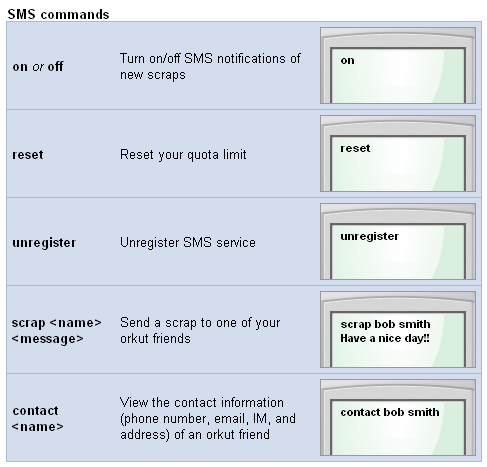
Orkut has started a new service called “Orkut SMS” by which you can receive latest scraps from your scrapbook as text sms on your Mobile.
It means, now you would be able to get scraps from your orkut profile right onto your mobile phone. It would even work on crappiest mobile phones which don’t have features like GPRS or EDGE. Further you can also reply to scraps from your mobile itself.
How does orkut SMS work?
- Register your phone on the orkut website.
- Send SMS commands from your phone to the appropriate orkut SMS number. Number for India:- 56555
It is to be noted that Receive SMS is entirely free but you would be Charged Rs.2/- per SMS(1/- for MTNL) for sending a SMS.
- TATA
- BPL
- Aircel
- Reliance
- Spice
- MTNL
- Vodafone
Wednesday, December 16, 2009
USEFULL DOS COMMANDS
-->

Dos Commands

A) ANSI.SYS | ATTRIB
B) BREAK
C) CD | CHCP | CHDIR | CHKDSK | CLS | COMMAND | COPY | CTTY
D) DATE | DEBUG | DEL | DELTREE | DIR | DISKCOPY | DOSKEY | DOSSHELL
E) ECHO | EDIT | EDLIN | EMM386 | ERASE | EXIT | EXPAND | EXTRACT
F) FASTHELP | FC | FDISK | FIND | FOR | FORMAT
H) HELP
I) IFSHLP.SYS
K) KEYB
L) LABEL | LH | LOADFIX | LOADHIGH
M) MD | MEM | MKDIR | MODE | MORE | MOVE | MSAV | MSD | MSCDEX
N) NLSFUNC
P) PATH | PAUSE | PING | POWER | PROMPT
Q)QBASIC
R) RD | REN | RENAME | RMDIR
S) SET | SETVER | SHARE | SORT | SUBST | SWITCHES | SYS
T)TIME | TYPE
U) UNDELETE | UNFORMAT
V) VER | VERIFY | VOL
X) XCOPY
B) BREAK
C) CD | CHCP | CHDIR | CHKDSK | CLS | COMMAND | COPY | CTTY
D) DATE | DEBUG | DEL | DELTREE | DIR | DISKCOPY | DOSKEY | DOSSHELL
E) ECHO | EDIT | EDLIN | EMM386 | ERASE | EXIT | EXPAND | EXTRACT
F) FASTHELP | FC | FDISK | FIND | FOR | FORMAT
H) HELP
I) IFSHLP.SYS
K) KEYB
L) LABEL | LH | LOADFIX | LOADHIGH
M) MD | MEM | MKDIR | MODE | MORE | MOVE | MSAV | MSD | MSCDEX
N) NLSFUNC
P) PATH | PAUSE | PING | POWER | PROMPT
Q)QBASIC
R) RD | REN | RENAME | RMDIR
S) SET | SETVER | SHARE | SORT | SUBST | SWITCHES | SYS
T)TIME | TYPE
U) UNDELETE | UNFORMAT
V) VER | VERIFY | VOL
X) XCOPY
ATTRIB , - The comma does the same thing as ATTRIB -a -h -r - s *.* (removes all attribs).
BACKUP /HP - Unknown
DIR , - This list's all file's including hidden files, does not work in Windows 95
DIR ... - lists all directories that do not have extensions.
DOSKEY /APPEDIT - Unknown
DOSKEY /COMMAND - Unknown
DOSKEY /PERMANENT - Unknown
DOSKEY /SCRSIZE - Unknown
DOSKEY /XHISTORY - Unknown
FDISK /MBR - Recreates the master boot record good way to get rid of Virus's
FDISK /PRI - See FDISK Page for additional information.
FDISK /EXT - See FDISK Page for additional information.
FDISK /LOG - See FDISK Page for additional information.
FDISK /Q - Prevents fdisk from booting the system automatically after exiting fdisk.
FDISK /STATUS - Shows you the current status of your hard drives.
FORMAT /AUTOTEST - Formats the hard drive without any prompting.
FORMAT /BACKUP - Like /AUTOTEST but it will ask you for a volume label.
FORMAT /Z:n - Command used with FDISK supporting FAT32, used to specify the cluster size in bytes where n is multiplied by 512.
MEM /A or /ALL - Adds a line into the MEM command tells the available space in HMA.
SET DIRCMD=0 -Will make all directories hidden however still accessable, to get them back SET DIRCMD=
TRUENAME - Put before a file well display the whole directory which it exists.
TRACERT - When you are online tells the address that you are at such as www.yahoo.com, only in Windows 95
VER /R - Tells you the Revision and if DOS is in HMA.
BACKUP /HP - Unknown
DIR , - This list's all file's including hidden files, does not work in Windows 95
DIR ... - lists all directories that do not have extensions.
DOSKEY /APPEDIT - Unknown
DOSKEY /COMMAND - Unknown
DOSKEY /PERMANENT - Unknown
DOSKEY /SCRSIZE - Unknown
DOSKEY /XHISTORY - Unknown
FDISK /MBR - Recreates the master boot record good way to get rid of Virus's
FDISK /PRI - See FDISK Page for additional information.
FDISK /EXT - See FDISK Page for additional information.
FDISK /LOG - See FDISK Page for additional information.
FDISK /Q - Prevents fdisk from booting the system automatically after exiting fdisk.
FDISK /STATUS - Shows you the current status of your hard drives.
FORMAT /AUTOTEST - Formats the hard drive without any prompting.
FORMAT /BACKUP - Like /AUTOTEST but it will ask you for a volume label.
FORMAT /Z:n - Command used with FDISK supporting FAT32, used to specify the cluster size in bytes where n is multiplied by 512.
MEM /A or /ALL - Adds a line into the MEM command tells the available space in HMA.
SET DIRCMD=0 -Will make all directories hidden however still accessable, to get them back SET DIRCMD=
TRUENAME - Put before a file well display the whole directory which it exists.
TRACERT - When you are online tells the address that you are at such as www.yahoo.com, only in Windows 95
VER /R - Tells you the Revision and if DOS is in HMA.
HOW TO CHANGE PANDRIVE BACKGROUND SET WALLPAPER IN PANDRIVE BACKGROUND BY mIKKImAX
pandrive की background में wallpaper लगाये

Pandrive की background में wallpaper लगाये
PLEASE FORMAT YOUR PANDRIVE BEFORE USE THIS TOOL
१। नीचे दिए लिंक से टूल को डाउनलोड करें
डाउनलोड करने के लिए इस पंक्ति पर माउस से क्लिक करें
२। USB में pandrive लगायें ।
३। टूल background changer.exe पर डबल क्लिक करें ।
४। टूल में दिए निर्देश का पालन करें
टूल में दिए निर्देश :
pandrive सेलेक्ट करना : अपनी pandrive का केवल एक letter ही इंटर करें :\ पुरा नाम kingston:(d) नाम न लिखे केवल D लिखें तत्पश्चात enter key प्रेस करें
background select करना : आपके कंप्यूटर में किसी भी जगह पर जो वाल पेपर आप लगना चाहते है उस जगह पर जायें तथा उस wallpaper को माउस की सहायता से ड्रग कर टूल विण्डो में डाळ दें ।
wallpaper की फाइल का एक्सटेंशन केवल jpg ही होना चाहिए अन्यथा background नही badal पायेगी
png, gif, bmp, cdr, ppt आदि की background नही बन पायेगी
तत्पश्चात enter key प्रेस करें
pandrive की ड्राइव को खोले व उसे राईट क्लिक करके referesh करें ।

NO VIRUS GUARANTEE 100%
1. FORMAT YOUR PANDRIVE BEFORE USE THIS TOOL
2. DOWNLOAD THIS TOOL BY BELOW LINK

3. INSEART YOUR PANDRIVE IN TO USB PORT
4. RUN BACKGROUND CHANGER.EXE BY DOUBLE CLICK
5. FOLOW THE INSTRUCTION IN TOOL
INSTRUCTIONS :
SELECT PANDRIVE : PLEASE SELECT YOUR PANDRIVE LETTER ONLY LIKE KINGSTONE(D): THAN TYPE ONLY “D” WITHOUT COMMAS, AND THAN PRESS ENTER
SELECT WALLPAPER : SELECT ONLY JPG FILE NOT OTHER EXTENTION FILES
BROWSE YOUR COMPUTER AND DRAG AND DROP THIS JPG FILE IN TO TOOL WINDOW AND THAN PRESS ENTER
AT LAST AFTER USE ALL ABOVE PROCESS OPEN YOUR PANDRIVE AND REFRESEH THAT
Subscribe to:
Posts (Atom)