
Thursday, March 25, 2010


Wednesday, March 24, 2010
How to use readyboost in win 7 , Use pandrive as memory in Win 7
With Windows ReadyBoost, you can use non-volatile flash memory, such as that on a universal serial bus (USB) flash drive, to improve performance without having to add additional memory "under the hood."
The flash memory device serves as an additional memory cache—that is, memory that the computer can access much more quickly than it can access data on the hard drive. Windows ReadyBoost relies on the intelligent memory management of Windows SuperFetch and can significantly improve system responsiveness.
It's easy to use Windows ReadyBoost. When a removable memory device such as a USB flash drive or a secure digital (SD) memory card is first inserted into a port, Windows Vista checks to see if its performance is fast enough to work with Windows ReadyBoost. If so, you are asked if you want to use this device to speed up system performance. You can choose to allocate part of a USB drive's memory to speed up performance and use the remainder to store files.

Windows ReadyBoost
Tuesday, March 23, 2010
How to check ur pandrive & memory card speed
Next, I downloaded a tool called “Crystal Disk Mark”, which is pretty cool to speed test your sd cards, flash drives and any other disk. In the meantime, I added my USB2.0 Card Reader, one 2GB CF Card and one 2GB SD Card (lucky me), because I was pretty sure that my MP3-Player wouldn’t perform very wel

How to Speed Up Windows 7

Most guides will tell you to turn off all the aero features and use no background wallpaper. That’s not useful, that’s more like a trade-off, because who wouldn’t want a nice desktop? And AeroSnap is really useful! I agree that you can get some more performance by doing this, but it’s not worth it. If you think you don’t need a “fancy” desktop, then feel free to do it anyway…
1. Hit Start
2. Enter “SystemPropertiesPerformance” into the search field, hit enter
3. Select “Adjust for best Performance” or at least uncheck the first two entries
Monday, March 22, 2010
SPEED UP WINDOWS 7 Speed Up Windows 7 Boot
Speed Up Windows 7 Boot
Do you have a dual-core or quad-core processor? Great, let’s lower the boot time of Windows 7:
1. Click on Start, enter “msconfig” into the search field
2. Open the “boot” tab
3. Click on Advanced

Speed Up Windows 7 Boot
4. Check “Number of proccessors” and select “2″ or “4″ from the dropdown menu. (obviously, you can only select it if you have a dual-core/quad-core).
Wednesday, March 3, 2010
FILE FINDER SOFTWARE
File Finder is especially useful when you don't know the exact name of the file you want. In this case, you don't have to perform clumsy, repeated searches using the traditional, iterative interface. A search is performed on each keystroke, so you can perform searches as fast as you can type.
Helps you find files faster when you don't know the exact name. 
Runs on Windows 95 or later.
you can free download File Finder.
how to uninstall symantec antivirus without password
When removing Symantec anti virus you often need to supply a password for the uninstall to run. This can be a very big pain if you've forgotten the password or if the original install was done by an administrator that has long since left. As usual, there is a work around. Here's how to remove SAV without supplying a password:
- Press Windows Key + R (This brings up the run dialog box)
- Type regedit and press Enter (This will open the Registry editor)
- Navigate to: HKEY_LOCAL_MACHINE\SOFTWARE\Intel\LANDesk\VirusProtect6\CurrentVersion\AdministratorOnly\Security
- Look for a DWORD value called UseVPUninstallPassword. Once you find it, double click it.
- Change the value of UseVPUninstallPassword to 0 (zero) and click OK [See pic below] 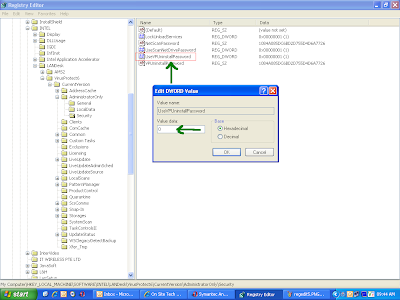
- You can now close the Registry Editor window
- We're done! You will now be able to uninstall Symantec anti virus without the annoying password request!
Subscribe to:
Comments (Atom)